smart watch instruction manual
Smart Watch Instruction Manual — Comprehensive Guide
Welcome! This comprehensive guide unlocks the full potential of your Nerunsa Q23 Smart Watch, offering detailed instructions and troubleshooting for optimal performance and enjoyment.
Congratulations on purchasing your new Nerunsa Q23 Smart Watch! This device isn’t just a timekeeper; it’s a gateway to a connected and healthier lifestyle, rivaling features found in top-tier brands, all at an accessible price point. Skmei, the parent company, is known for delivering advanced technology affordably.
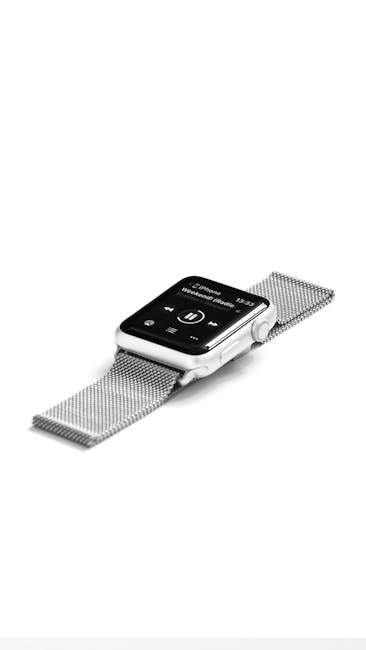
Inside the box, you should find the Nerunsa Q23 Smart Watch itself, a user manual (that’s this document!), and a dedicated charging cable. Please verify all components are present. This manual serves as your roadmap to mastering every function, ensuring you experience peak performance and fully enjoy your new wearable companion.
Getting Started — Initial Setup
Before first use, ensure your Nerunsa Q23 is adequately charged (see the ‘Charging Your Smart Watch’ section). Once charged, press and hold the power button to activate the device. The initial setup involves selecting your preferred language and time format.
Crucially, download and install the “MT-SMART” companion app on your smartphone – this is essential for unlocking the full range of features. The app facilitates wireless connection and allows for personalized settings. Enable Bluetooth on your phone to begin the pairing process, guided by on-screen prompts on both devices.
Charging Your Smart Watch
Proper charging is vital for optimal performance. Your Nerunsa Q23 utilizes a specialized charging cable – ensure it’s securely connected to both the watch and a USB power source. Avoid using fast chargers, as they may damage the battery.
For best results, use a standard 5V/1A USB adapter. The watch will display a charging indicator on the screen when connected. A full charge is recommended before initial use and whenever the battery level is critically low. Consistent proper charging extends battery lifespan and ensures reliable operation.
Charging Methods
The Nerunsa Q23 primarily charges via the included magnetic charging cable. Align the pins on the cable with the charging contacts on the back of the watch; a secure connection is essential. Alternatively, you can connect the cable to any standard USB port on a computer, laptop, or a USB wall adapter.
Wireless charging is not supported for this model. Ensure the charging area is clean and free of debris for efficient power transfer. Avoid bending or damaging the charging cable, as this could interrupt the charging process and potentially harm the device.
Charging Time & Indicators
Full charging of your Nerunsa Q23 typically takes approximately 2-3 hours, depending on the battery level and the power output of your USB adapter. While charging, the watch display will show a charging icon and percentage, indicating the current battery level.
A fully charged battery will display 100%. Once fully charged, the charging icon will either disappear or change to indicate a full charge. Do not leave the watch connected to the charger for extended periods after reaching 100% to preserve battery health.
Powering On/Off & Basic Operations
To power on your Nerunsa Q23 Smart Watch, press and hold the side button for 3-5 seconds. The watch will vibrate and the display will illuminate, showing the brand logo and initiating the startup sequence. To power off, press and hold the same button until a power-off menu appears on the screen; select “Power Off” to confirm.
Basic operations include navigating the interface using touch gestures – swipes and taps. A short press of the side button typically returns you to the watch face. Familiarize yourself with these controls for seamless operation.
Understanding the Display
Your Nerunsa Q23 Smart Watch features a vibrant touchscreen display, providing clear visibility of information. The display showcases time, date, notifications, and various health metrics. Swipe across the screen to access different widgets and functionalities. The interface is designed for intuitive navigation, offering a user-friendly experience.
Key display elements include the watch face, status icons (battery level, Bluetooth connection), and data fields for health tracking. Understanding these elements is crucial for effectively utilizing your smartwatch’s capabilities.
Screen Brightness Adjustment
Adjusting the screen brightness optimizes visibility in varying lighting conditions and conserves battery life. To modify brightness, navigate to the settings menu on your Nerunsa Q23 Smart Watch. Typically, this involves accessing ‘Display’ or ‘Brightness’ options within the settings.
A slider or a series of levels allows you to increase or decrease the brightness. Experiment to find a comfortable level for both indoor and outdoor use. Higher brightness consumes more power, so consider lowering it when possible.
Display Customization ⏤ Watch Faces
Personalize your Nerunsa Q23 Smart Watch by selecting from a variety of watch faces! Access the watch face selection through the ‘Display’ settings on your device, or via the MT-SMART companion app on your smartphone. Long-pressing on the current watch face often directly initiates the selection process.
Browse pre-installed options or download additional faces through the app. Many watch faces offer customization, allowing you to change colors, complications (data displayed), and overall style to match your preferences and daily needs.
Navigating the User Interface
The Nerunsa Q23 Smart Watch features an intuitive touchscreen interface. Swipe left or right to cycle through widgets displaying information like activity tracking, heart rate, and weather. Swipe down from the top of the screen to access quick settings, including brightness and Do Not Disturb mode.
Swipe up from the bottom to view notifications. A single tap selects an option, while a long press often reveals additional settings. Utilize the side button for returning to the home screen or activating specific functions, as configured within the settings menu.
Connecting to Your Smartphone
Seamless smartphone integration unlocks the full functionality of your Nerunsa Q23. Begin by downloading & installing the companion app, MT-SMART, from your device’s app store (iOS or Android). Ensure Bluetooth is enabled on both your smartphone and the smartwatch.
Open the MT-SMART app and follow the on-screen prompts to initiate the Bluetooth pairing process. The app will search for available devices; select your Nerunsa Q23 from the list. Confirm the pairing request on both devices to establish a secure connection.
Downloading & Installing the Companion App (MT-SMART)
To fully utilize your Nerunsa Q23’s features, you must install the MT-SMART application on your smartphone. This app serves as the central hub for synchronization and customization. Locate the app within the Apple App Store (iOS devices) or Google Play Store (Android devices).
Search for “MT-SMART” and tap “Install.” Once downloaded, open the application. You may be prompted to grant necessary permissions, such as access to Bluetooth and notifications – these are crucial for proper functionality. Follow any on-screen instructions to complete the installation process.
Bluetooth Pairing Process
Ensure Bluetooth is enabled on your smartphone. Open the MT-SMART app and navigate to the “Device” or “Add Device” section. Your smart watch should appear in the list of available devices. Select your watch – it will likely be identified by its model number (Nerunsa Q23).
A pairing request will appear on both your smartphone and smart watch. Confirm the pairing code on both devices to establish a secure connection. Once paired, the app will synchronize with your watch, allowing data transfer and feature access. Maintain a close proximity during pairing for a stable connection.
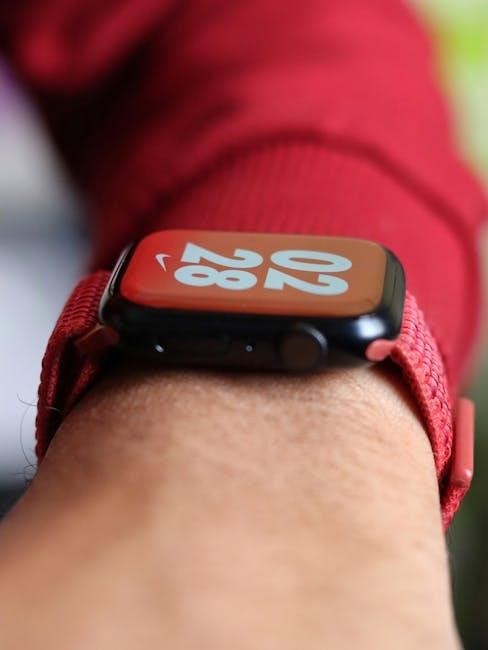
Key Features & Functionality
Your Nerunsa Q23 Smart Watch boasts a diverse range of features beyond basic timekeeping. Enjoy precise Time & Date Settings, easily adjustable through the companion app. Stay connected with customizable Notifications for incoming Calls, Messages, and Apps, delivered directly to your wrist.
Experience seamless integration with your daily life, utilizing advanced functionalities. Skmei watches, like the Q23, compete with leading brands by offering a comprehensive suite of tools designed for convenience and enhanced connectivity, making it a powerful companion.
Time & Date Settings
Adjusting the Time & Date on your Nerunsa Q23 is straightforward. Primarily, synchronization occurs automatically when paired with your smartphone via the MT-SMART app. However, manual adjustments are possible directly on the watch. Navigate to the settings menu using the touchscreen and select “Time & Date”.
Here, you can modify the hour, minute, and date format (MM/DD/YYYY or DD/MM/YYYY). Ensure accurate timekeeping for reliable notifications and fitness tracking. Consistent synchronization with your phone guarantees optimal functionality and prevents discrepancies.
Notifications — Calls, Messages, Apps
Your Nerunsa Q23 Smart Watch excels at keeping you connected. Once paired with your smartphone via the MT-SMART app, you’ll receive notifications for calls, messages, and app alerts directly on your wrist. Customize notification preferences within the app to select which apps can send alerts to your watch.
Incoming calls display caller ID, and you can often reject calls directly from the watch. Message previews allow quick glances at content. Ensure the app has necessary permissions for seamless notification delivery. Vibration intensity is also adjustable within settings.
Health & Fitness Tracking

The Nerunsa Q23 Smart Watch is your personal health and fitness companion. It continuously monitors key metrics, providing valuable insights into your well-being. Utilize the built-in heart rate monitoring to track your cardiovascular health throughout the day and during workouts.
Accurate step counting and distance tracking motivate you to stay active, while sleep monitoring analyzes your sleep patterns for improved rest. Explore various sports modes tailored to different activities, providing specialized data for optimal training and performance analysis.
Heart Rate Monitoring
The Nerunsa Q23’s heart rate monitoring feature utilizes advanced sensors to provide real-time and continuous heart rate data. Access your current heart rate, resting heart rate, and heart rate zones directly on the watch display. This data is invaluable for optimizing workout intensity and tracking cardiovascular health trends.
The watch also provides alerts for unusually high or low heart rates, potentially indicating underlying health concerns. Review historical heart rate data within the companion MT-SMART app for detailed analysis and long-term tracking of your cardiovascular fitness.
Step Counting & Distance Tracking
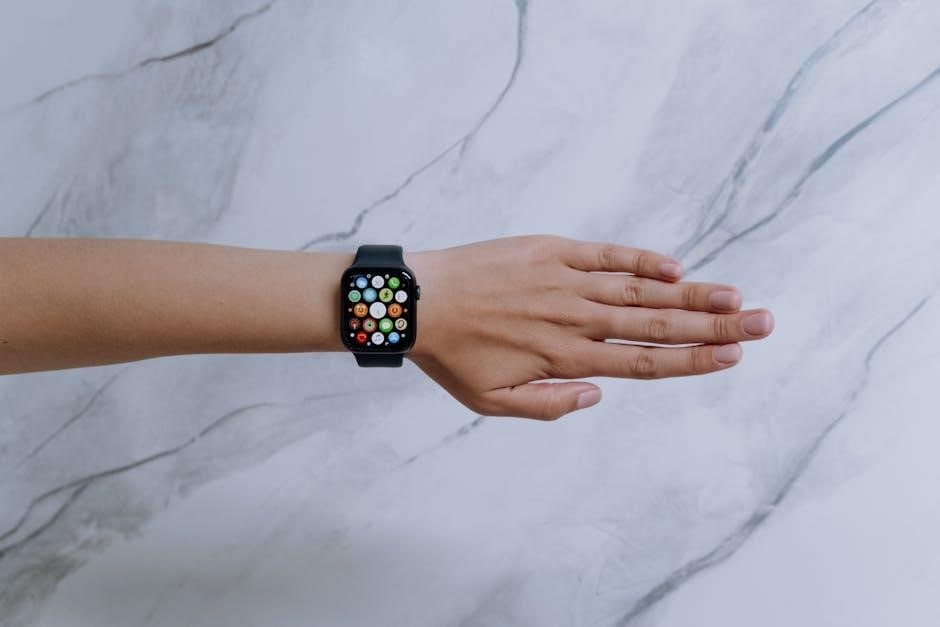
Your Nerunsa Q23 automatically tracks your daily steps taken and estimates the distance traveled based on your stride length, configurable within the MT-SMART app. This feature motivates you to stay active and achieve your fitness goals; View your progress in real-time on the watch face or delve into detailed statistics within the app.
The watch calculates distance using sophisticated algorithms, providing a reasonably accurate estimate of your activity. Regularly synchronize with the app to maintain accurate data and monitor your progress over time, fostering a healthier lifestyle.
Sleep Monitoring
The Nerunsa Q23’s sleep monitoring feature automatically detects and analyzes your sleep patterns, including duration of deep sleep, light sleep, and awake time. Wear your watch comfortably during sleep to gather accurate data, which is then synchronized with the MT-SMART application for detailed insights.
Review your sleep score and trends within the app to understand your sleep quality and identify areas for improvement. Consistent sleep tracking can help you optimize your bedtime routine and enhance overall well-being, leading to a more refreshed and productive day.
Sports Modes ⏤ Available Activities
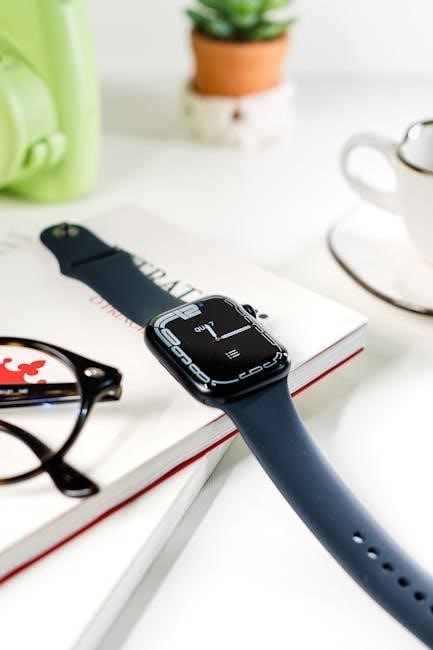
Your Nerunsa Q23 Smart Watch offers a variety of pre-set sports modes to accurately track your performance during different activities. These include running, walking, cycling, badminton, basketball, and swimming – providing tailored metrics for each sport.
To begin, select your desired sport mode from the watch’s menu before starting your workout. The watch will then monitor relevant data such as duration, distance, calories burned, and heart rate, syncing this information to the MT-SMART app post-exercise for detailed analysis.
Advanced Features
Beyond basic tracking, your Nerunsa Q23 Smart Watch boasts several advanced features enhancing its usability. Enjoy convenient Music Control directly from your wrist – play, pause, skip tracks, and adjust volume without reaching for your phone. Utilize the Camera Remote Control function to capture photos on your paired smartphone, perfect for group shots!
The helpful Find My Phone feature assists in locating a misplaced device. Activate it on your watch, and your smartphone will emit a sound, even if silenced, simplifying your search.
Music Control
Effortlessly manage your smartphone’s music playback directly from your Nerunsa Q23 Smart Watch. Once connected via the MT-SMART app, access basic controls on your watch face. Use the intuitive interface to Play/Pause your current track, Skip to the Next Song, or Return to the Previous Song.
Furthermore, you can conveniently Adjust the Volume without needing to interact with your phone. This feature supports most popular music streaming applications, providing seamless control during workouts or daily commutes.
Camera Remote Control
Transform your Nerunsa Q23 Smart Watch into a convenient remote shutter for your smartphone’s camera! After successfully pairing your watch with the MT-SMART app, activate the camera control function. This allows you to capture photos and record videos remotely, perfect for group selfies or stable long-exposure shots.
Simply frame your shot on your phone, and then use your watch as a button to trigger the camera. Enjoy greater flexibility and creativity in your photography, eliminating the need for timers or assistance.
Find My Phone
Misplaced your smartphone? The Nerunsa Q23 Smart Watch offers a helpful “Find My Phone” feature! Ensure your phone is within Bluetooth range and connected to the watch via the MT-SMART app; Activate the function on your watch, and your phone will emit a loud audible alert, even if it’s on silent.
This feature is incredibly useful for quickly locating your device around the house or office. Remember, the phone must be within Bluetooth connectivity for this function to operate effectively, providing peace of mind.
Customization Options
Personalize your Nerunsa Q23 Smart Watch to match your style! Beyond the diverse selection of pre-loaded watch faces accessible through the MT-SMART app, you can easily change the watch band. Standard watch bands are compatible, allowing for quick swaps to suit any occasion.
Experiment with different colors and materials to create a unique look. The app also provides options to customize notification displays and widget arrangements, tailoring the watch interface to your preferences for a truly personalized experience.
Changing Watch Bands
To change your Nerunsa Q23 watch band, locate the quick-release spring bars on the underside of the watch. Using the included tool, or a small pin, gently push the spring bar inwards to disengage it from the lug. Carefully remove the existing band.
Align the new band’s spring bar with the lug opening, and press inwards until it clicks securely into place. Ensure the band is firmly attached before use. Repeat this process for the other side. Enjoy your refreshed look!
Troubleshooting ⏤ Common Issues
Watch won’t power on? Ensure sufficient charge. If still unresponsive, try a forced restart by holding the power button for 10-15 seconds. Bluetooth connection issues? Verify Bluetooth is enabled on your smartphone and the watch is within range. Restart both devices.
Notifications not appearing? Check app permissions within your phone’s settings and ensure ‘MT-SMART’ has notification access. Inaccurate readings? Ensure the watch fits snugly, but not too tightly, on your wrist for optimal sensor performance.
Frequently Asked Questions (FAQ)
Q: Is the watch waterproof? A: The watch is splash-proof, but avoid prolonged submersion. Q: How do I change the time? A: Time syncs automatically via the ‘MT-SMART’ app. Manual adjustment isn’t typically needed. Q: Can I answer calls on the watch? A: The watch displays call notifications, but call answering depends on your smartphone’s connection.
Q: How often should I charge the watch? A: Daily use requires charging every 1-2 days. Q: What is the Bluetooth range? A: Typically up to 10 meters (33 feet) in open space.
Safety Precautions & Warnings
Important: Consult your doctor before using the heart rate monitor if you have a pre-existing medical condition. Do not use while driving or operating machinery. Avoid extreme temperatures and direct sunlight for extended periods.
This device is not a medical device and should not be used for diagnostic purposes. Keep the watch and accessories out of reach of small children. Discontinue use if you experience skin irritation. Improper charging or use of non-approved accessories may cause damage or injury.
Specifications
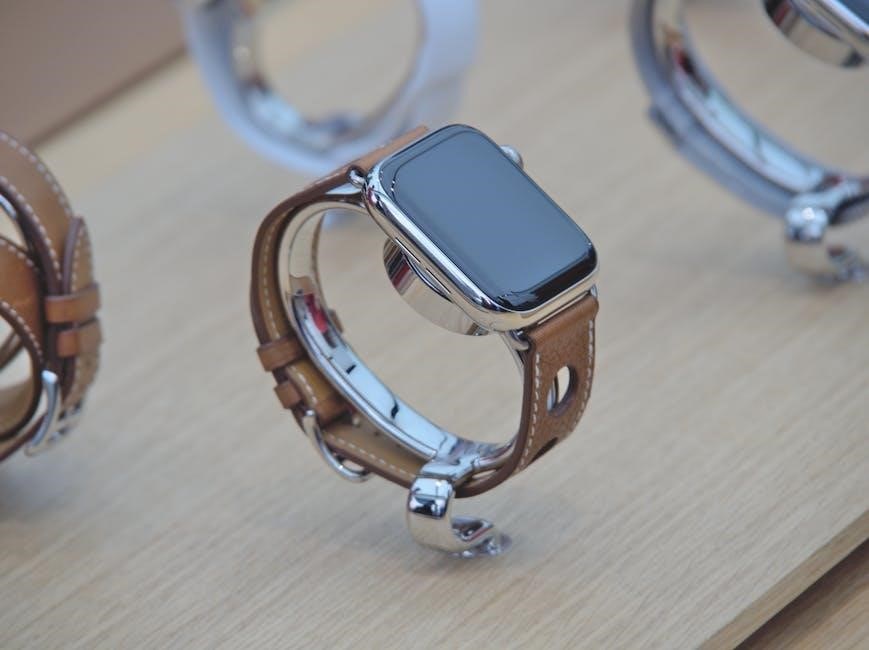
Model: Nerunsa Q23. Display: 1.4-inch TFT LCD with a resolution of 240×240 pixels. Bluetooth: Version 5.0, offering a stable connection up to 10 meters. Battery Capacity: 200mAh lithium polymer battery. Charging Time: Approximately 2-3 hours. Water Resistance: IP67 rated, splash and dustproof.
Compatibility: iOS 9.0 and Android 5.0 or above. Operating Temperature: -10°C to 45°C. Watch Band Material: Silicone. Dimensions: 48mm x 36mm x 12mm. Weight: Approximately 35 grams. These specifications are subject to change without prior notice.
Warranty Information
Limited Warranty: Your Nerunsa Q23 Smart Watch is covered by a one-year limited warranty from the date of original purchase against defects in materials and workmanship. This warranty does not cover damage resulting from misuse, accidents, or unauthorized modifications.
Warranty Service: To obtain warranty service, please contact our customer support team with proof of purchase. We will repair or replace the defective product at our discretion. Shipping costs for warranty claims are the responsibility of the customer. This warranty gives you specific legal rights.
Cleaning & Maintenance
Regular Cleaning: To maintain your Nerunsa Q23 Smart Watch’s appearance and functionality, clean it regularly with a soft, damp cloth. Avoid using harsh chemicals, abrasive cleaners, or solvents, as these can damage the screen or casing.
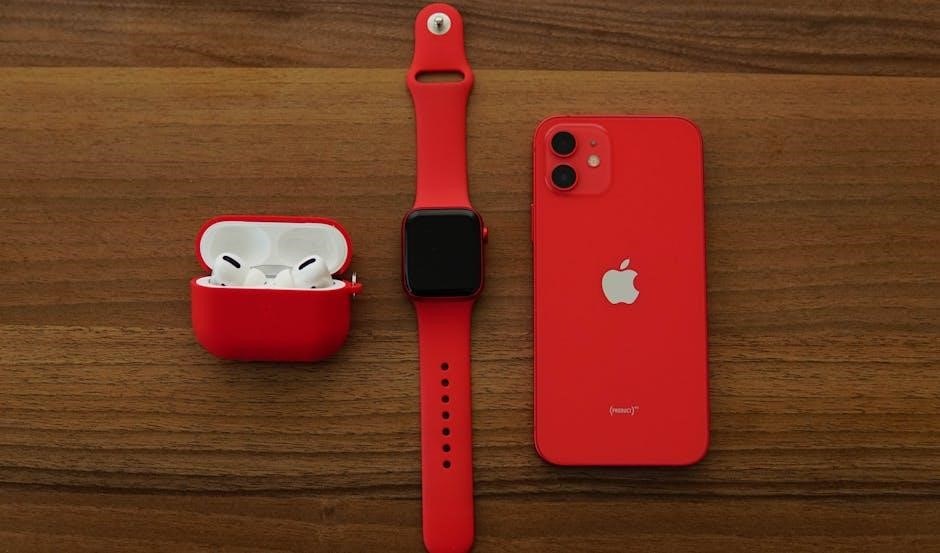
Band Care: For watch bands, especially those made of silicone or leather, clean them separately with mild soap and water. Ensure they are thoroughly dried before reattaching. Avoid prolonged exposure to direct sunlight or extreme temperatures. Proper care extends the lifespan of your device!
Resetting Your Smart Watch
Performing a Reset: If your Nerunsa Q23 Smart Watch experiences persistent issues, a factory reset can restore it to its original settings. Access the reset option through the watch’s settings menu – typically found under ‘System’ or ‘General’. Important: This will erase all personal data, so back up important information beforehand.
Alternative Method: If the touchscreen is unresponsive, consult the Skmei support resources for potential hardware reset procedures. A reset resolves software glitches and optimizes performance, ensuring a smooth user experience.
Software Updates & Firmware
Staying Current: Regularly updating your Nerunsa Q23’s software and firmware is crucial for optimal performance and access to new features. Updates, delivered via the MT-SMART companion app, enhance stability, fix bugs, and improve compatibility. Check for Updates: Within the app, navigate to the ‘Device’ or ‘Firmware Update’ section.
Update Process: Ensure your watch is sufficiently charged and connected to your smartphone via Bluetooth during the update. Interrupting the process can cause issues, so maintain a stable connection. Skmei continually refines its software.
Skmei Smart Watch Specific Features
Advanced Functionality: Skmei smartwatches, including those compatible with the MT-SMART app, distinguish themselves with a robust feature set beyond basic timekeeping. Expect enhanced sports modes, detailed health tracking, and extended battery life compared to some competitors. Unique Capabilities: Skmei prioritizes affordability without sacrificing functionality, offering a compelling alternative to top-tier brands.
Customization: Explore unique watch faces and band options to personalize your Skmei experience. The brand consistently delivers value, blending performance with accessible pricing.
Nerunsa Q23 Specific Features
Enhanced User Experience: The Nerunsa Q23 stands out with its intuitive interface and seamless connectivity via the MT-SMART application. Gesture Control: A key feature is the convenient wake-up gesture, allowing quick access to time and notifications with a simple wrist movement. This eliminates the need for button presses in many situations.
Comprehensive Tracking: Expect detailed health and fitness metrics, alongside customizable settings to tailor the watch to your individual needs. This model aims for optimal performance and user enjoyment.
Wake-up Gesture Configuration
Activating the Feature: To enable the wake-up gesture, navigate to the settings menu within the MT-SMART companion app on your paired smartphone. Locate the “Gesture Control” or “Wrist Wake” option and toggle it to the ‘on’ position. Customization Options: Some models allow adjustment of gesture sensitivity – higher sensitivity means the screen activates with a smaller wrist movement.
Troubleshooting: If the gesture isn’t working, ensure it’s enabled in the app and try adjusting the sensitivity. A clean watch face also improves gesture recognition.
Contact Information & Support
For Assistance: Should you encounter any issues not covered in this manual, or require further support, please don’t hesitate to contact our dedicated customer service team. Email Support: Reach us at support@nerunsa.com for prompt assistance with any questions or concerns. Online Resources: Visit our official website at www.nerunsa.com for FAQs, troubleshooting guides, and software updates.
Community Forum: Join our online community forum to connect with other users and share experiences. We are committed to providing excellent support!